

Every command center in Delphi doubles as its own Model Context Protocol server. Point Claude Desktop, ChatGPT, Cursor, an in-house agent, or any MCP-compatible client at a dashboard and it can read your data, query your KPIs, and ground its answers in the same numbers your team sees. Both API key and OAuth2 authentication are supported, so you can wire up a long-lived service integration or let a user bring their own agent.
The per-dashboard endpoint lives at:
https://<your-tenant>.outcome.com/api/dashboards/<dashboardId>/mcp
Replace <your-tenant> with the subdomain your organization uses to sign in, and <dashboardId> with the command center you want to expose. Both values are visible in the URL bar when you open the dashboard in Delphi.
The fast path: paste the URL into your client
For any MCP-aware client, the simplest wiring is to paste the endpoint URL above into the client’s Add MCP Server flow. Claude Desktop, ChatGPT, Cursor, and most in-house agent stacks all support the same basic flow:
- Open your MCP client’s settings and find the “Add MCP Server” or “Connect a server” option.
- Paste the endpoint URL for your command center.
- Save or connect.
The client prompts you to sign in to Delphi and complete setup in the browser. The handshake binds the resulting session to your Delphi user, so whatever scope you hold on the dashboard is the ceiling on what the agent can see.
This is the right path when a human is bringing their own agent and you want that agent’s reads to inherit their permissions.
From the CLI
If you’re running a terminal-based coding agent, the same endpoint works — just pass it through the CLI’s MCP registration command.
Claude Code:
claude mcp add --transport http delphi https://<your-tenant>.outcome.com/api/dashboards/<dashboardId>/mcpOpenAI Codex (Codex auto-detects transport from the URL):
codex mcp add delphi --url https://<your-tenant>.outcome.com/api/dashboards/<dashboardId>/mcpEither command registers a server named delphi pointed at the command center. Your next session will prompt you to sign in through the browser, and from then on the agent can query that dashboard as you.
The long-lived path: generate an API key
When you want an integration that isn’t tied to a single user — a service bot, a scheduled job, a shared workspace tool — generate an API key instead.
- Open the command center.
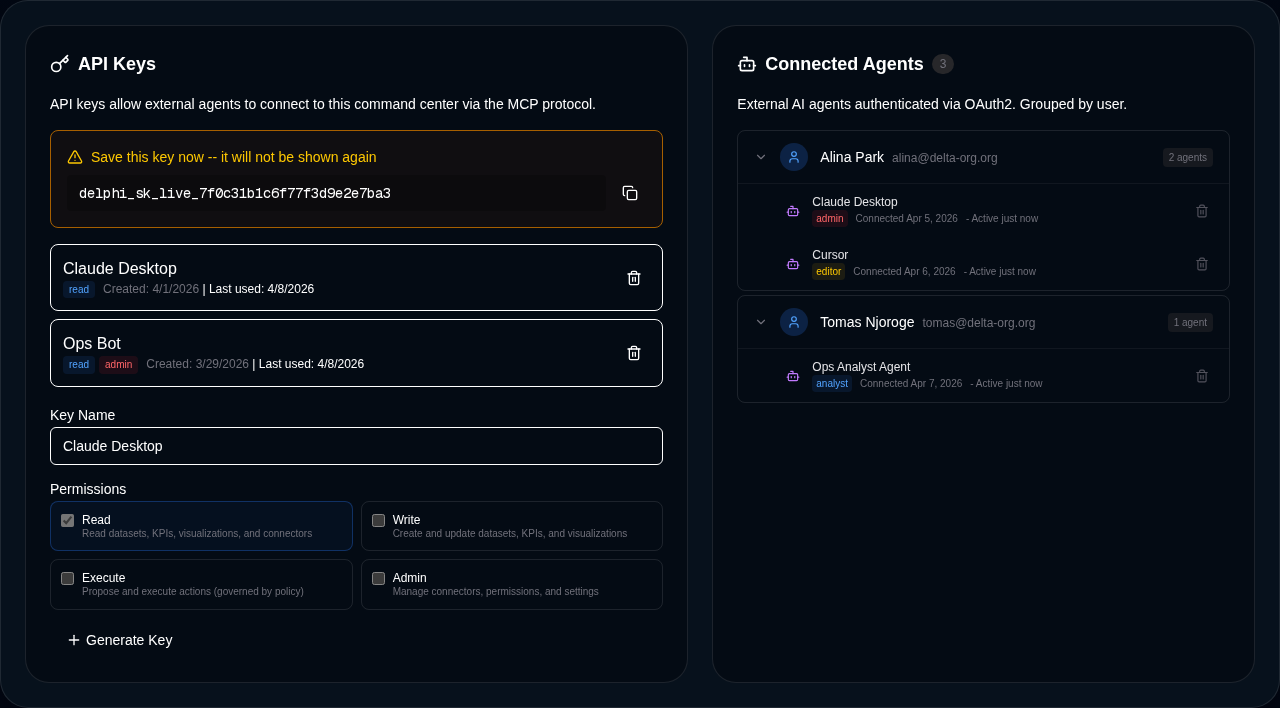
- Go to Permissions → API Keys.
- Click Create API Key.
- Give it a name (for example “Claude Desktop” or “Ops Bot”) and choose the appropriate scope.
- Copy the key when it appears. Delphi shows the full key exactly once, prefixed with
delphi_sk_. - Use that key with the same MCP URL above — your client will typically accept it as a bearer token in the
Authorizationheader.
Keys are stored one-way hashed, so a lost key cannot be recovered — it has to be regenerated. Listing, creating, and revoking keys all require admin scope on the dashboard, so day-to-day editors and analysts cannot silently hand an external agent a back door. See roles and permissions for the full scope hierarchy.
If the command center has nested initiatives below it, an API key minted on the parent grants the same external-agent access to every initiative in the subtree. Revoking the key at its origin cuts off access everywhere it cascades to; an inherited copy cannot be revoked from a child — the UI sends you back to the originating command center to do it once, cleanly.
Connecting Delphi to an external MCP server (the other direction — see MCP client setup) carries a related guardrail: if the external server you’re connecting to expects Delphi to forward user-context headers (your tenant, the calling user, the active dashboard), turning on that forwarding setting is gated to tenant admins. Forwarding user context is a data-egress decision, and Delphi keeps it behind the same role that manages the rest of the platform’s sharing posture.
What gets exposed
Only the read-only subset of Delphi’s tool catalog is surfaced through the MCP server. External agents can query datasets, inspect KPIs, pull visualization metadata, and run analytical lookups, but they cannot mutate dashboards, edit permissions, or trigger governed actions through this surface. Mutating tools stay inside Delphi’s own chat experience, where policy and approval workflows live.
Alongside the tools, your dashboard’s core data is exposed as MCP resources: the dashboard profile, the full KPI set, and one resource per dataset, connector, and visualization. Clients that understand resources can list and read them directly, which is how agents like Claude Desktop attach your command center as a grounded context source.
This is the exact inverse of the MCP client setup, where Delphi itself consumes external MCP servers.
Manage sessions
OAuth2-authenticated agents show up in the Connected Agents list on the Permissions tab, grouped by user. You can see which client is connected, which user authorized it, when it last made a request, and revoke any session in one click. Revoked sessions stop working immediately, which is useful when a laptop walks off or an employee changes roles.
If you want a personal view of every agent session authorized against your own account — across every command center you have access to — open your account settings and find the Connected Accounts panel. You’ll see every active MCP session bound to you, grouped by client, with when each was last active and a one-click revoke. This is the view to use when a personal laptop walks off or when you’re switching out a client that had access: one place, every session, no need to walk through each command center separately.
API keys and OAuth2 sessions are managed separately. Rotating a key does not disturb OAuth2 sessions, and revoking a session does not invalidate keys.
Security and audit
External agent reads are not a blind spot. Every tool call and resource read that flows through the MCP server is recorded in Delphi’s audit log with the calling identity, the dashboard, and the resource or tool name. You can trace any answer an external agent gave back to the exact data it pulled. See audit logging for how to query, export, and alert on that stream.
Combined with one-way hashed keys, admin-scoped key management, browser-confirmed OAuth2 sign-in, and read-only tool exposure, the MCP server gives you a standards-based integration surface without weakening Delphi’s governance posture.